
Agentsflare Claude Desktop Configuration Guide
Claude Desktop is the official desktop client from Anthropic, available for Windows and macOS.
Installing Claude Desktop
- Visit the Claude website to download the installer for your system
- Run the installer to complete installation
- Launch Claude Desktop
Configuring Claude Desktop
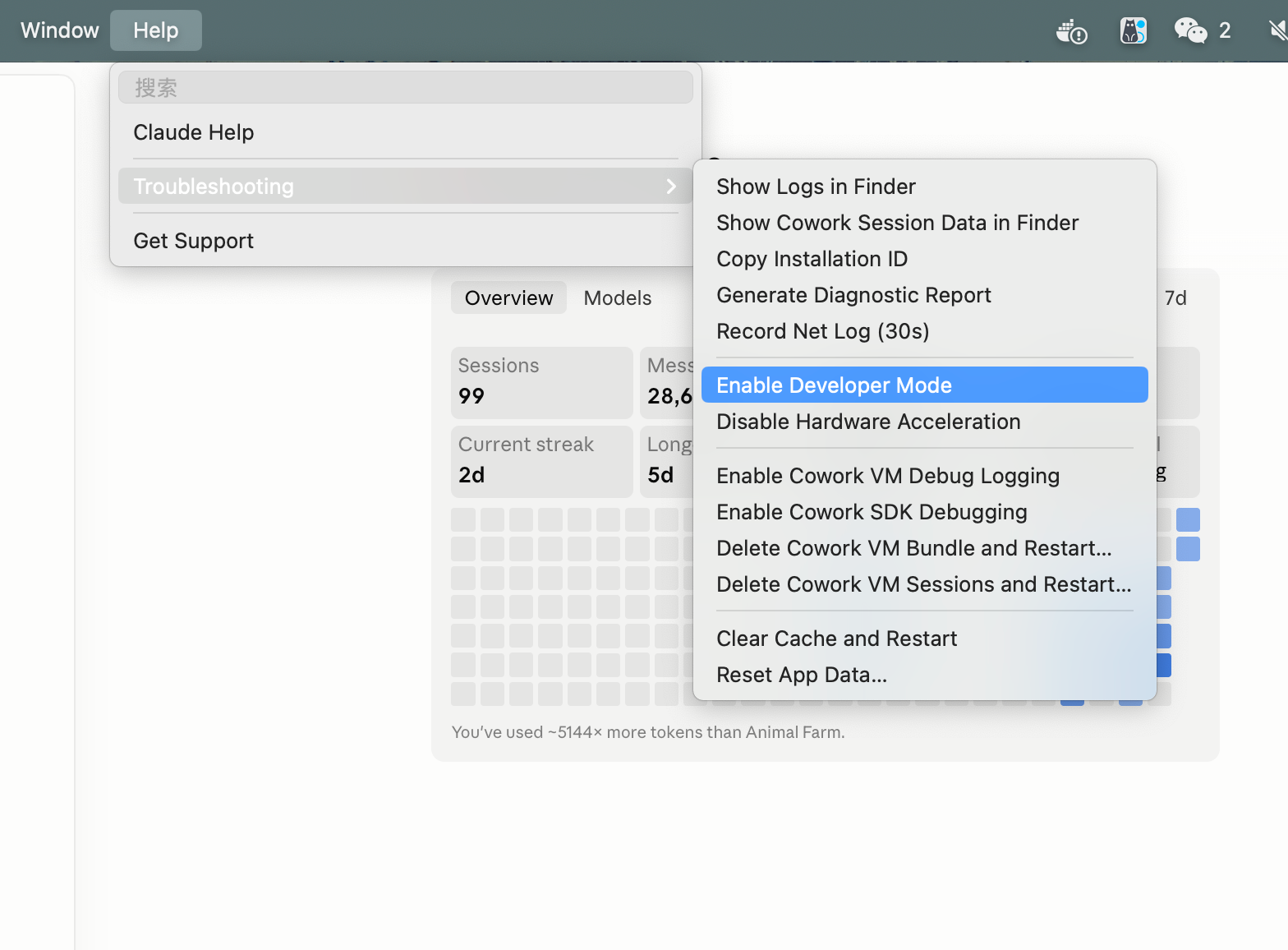
1. Enable Developer Mode
Open Claude Desktop settings, locate the developer options, and enable developer mode. Claude Desktop will restart automatically after enabling.
2. Configure API Address
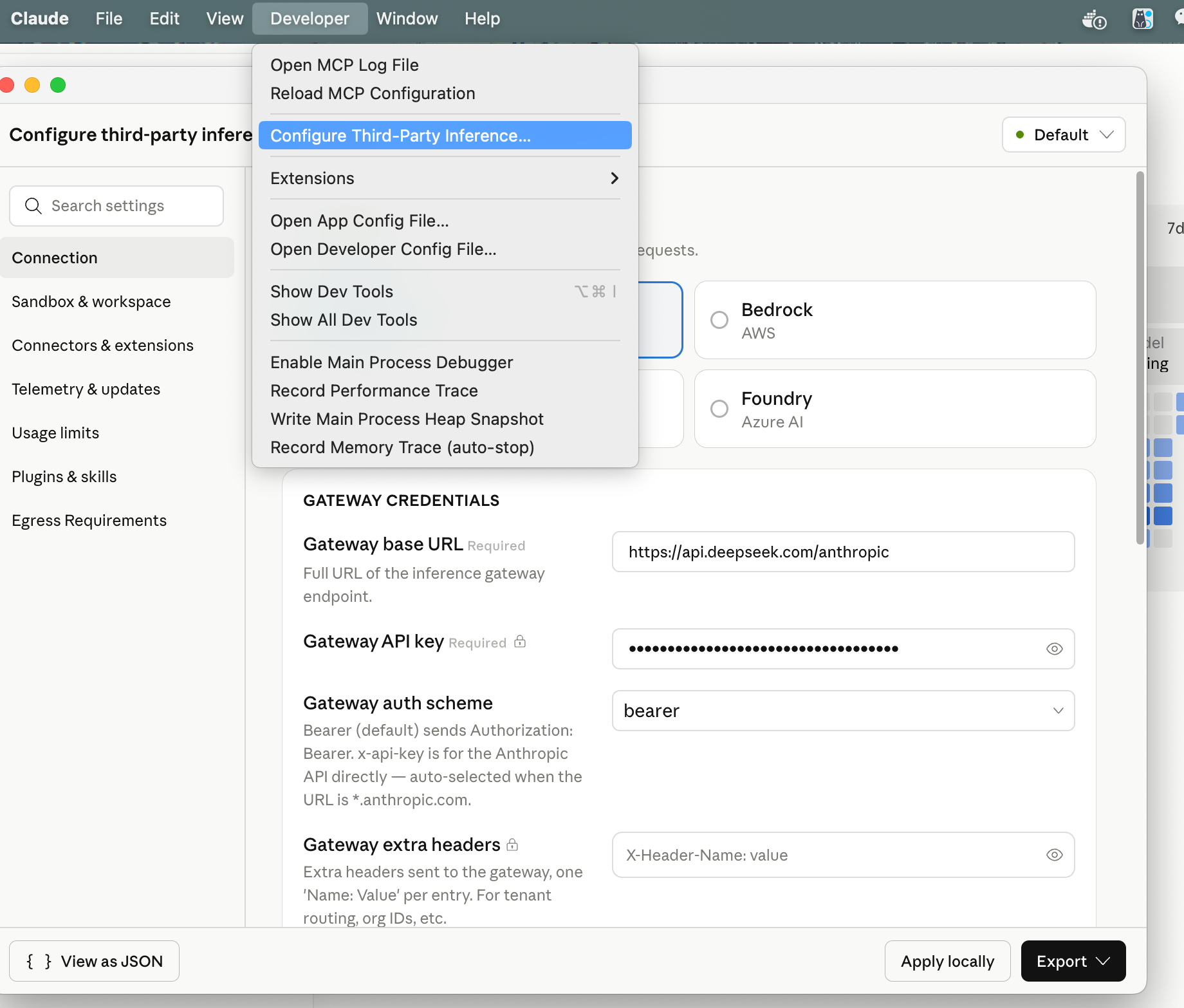
In the developer settings, configure the custom API address. Set the Base URL to the Agentsflare proxy endpoint:
- Base URL:
https://api.agentsflare.com/anthropic - API Key: Your Agentsflare API Key
- A new Developer option appears at the top. Click it and select Configure third-party inference to configure.
- In the popup window, select Gateway and enter your Agentsflare API Key.
3. Configure Model
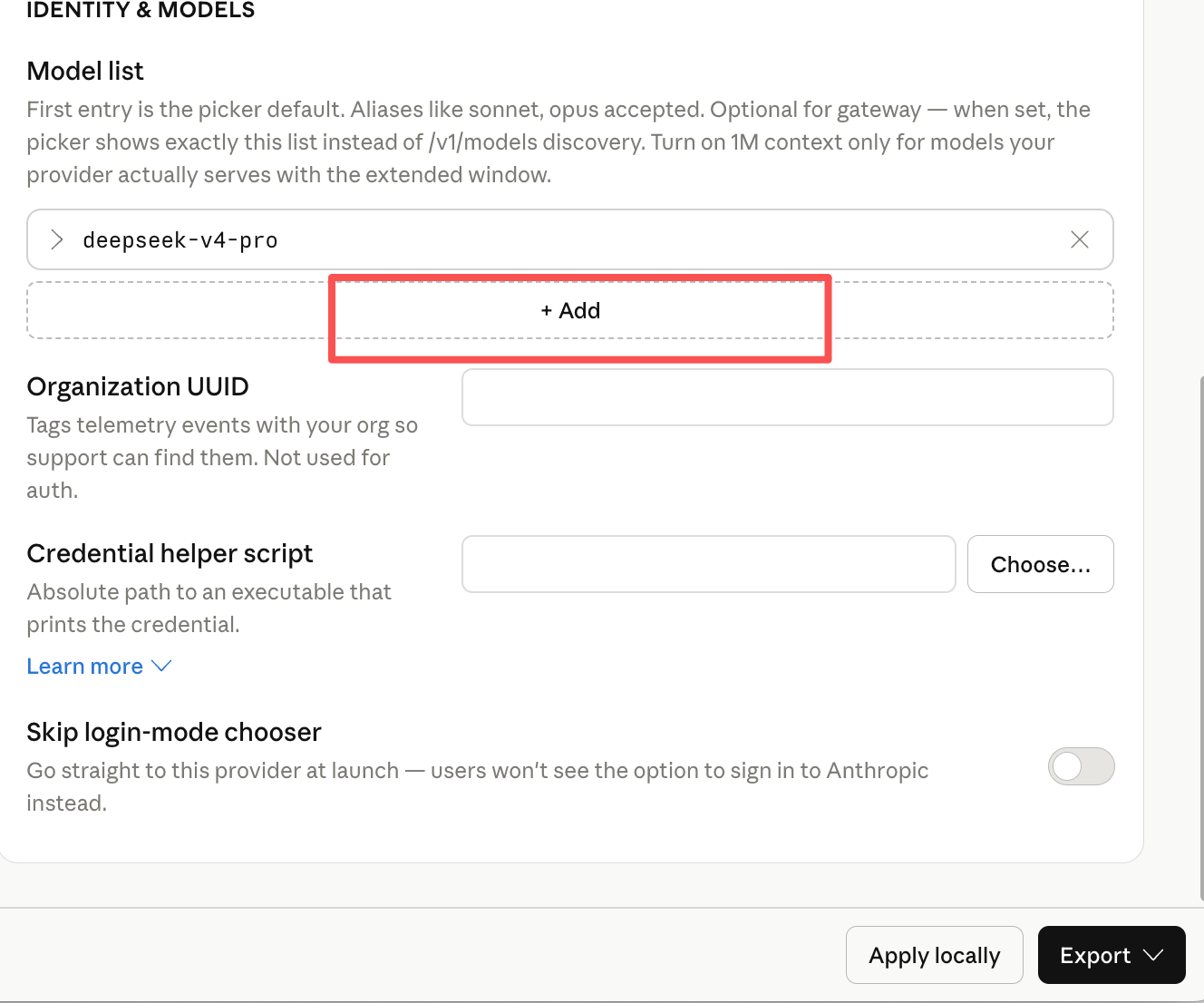
In the model settings, select the Claude model you want to use, for example:
claude-opus-4-6claude-sonnet-4-6claude-opus-4-5-20251101
Verify Configuration
After completing the configuration, restart Claude Desktop and send a test message to verify the connection. If configured correctly, Claude Desktop will access Claude models through the Agentsflare proxy.